duckyPad-Pro
Writing duckyScript
| Get duckyPad Pro | Official Discord | Getting Started | Table of Contents |
Overview
duckyScript is a simple language for automating keyboard/mouse inputs.
It was originally developed for USB Rubber Ducky.
Quick Examples
In the simplest form, you just tell it what keys to press!
Ideal for key combos:
- New Tab:
CONTROL t - Task Manager:
CONTROL SHIFT ESC
Once familiar, you can write longer multi-line scripts for more complex actions.
Open Webpage:
WINDOWS r
DELAY 500
STRING https://youtu.be/dQw4w9WgXcQ
ENTER
At full potential, duckyScript is much closer to a general-purpose language.
You can:
- Use Variables, Conditions, and Loops.
- Read Buttons
- Write to OLED screen
- Change RGB colors
- And more!
This allows highly customized macros for your exact needs.
First Time?
There are quite a few commands, and it can be a bit daunting.
The first few sections (from Comments to Mouse) is more than enough to get started.
You can skim the rest once familiar with the basics.
Also playing with sample profiles is a good way to get a feel of duckyScript.
Of course, people at the Official Discord are always happy to help!
👉👉 duckyScript Cheatsheet 👈👈
Click me to download a PDF of the quick reference guide!
- Much easier to read than going through this whole page.
🤖 Doc for AI 🤖
You can also ask AI to write / explain duckyScript for you.
- Download this file (Right click -> Save As)
- Include as attachment (or paste content) in chat
- AI can make mistakes. Always double check!
Syntax Highlighter
Available for VS Code and Sublime Text
Recommended for longer and more complex scripts, write there and copy it back.
List of Commands
- Comments
- Typing
- Pressing Keys
- Timing
- Mouse
- Multiple Actions
- Profile Switching
- OLED
- Per-Key RGB
- Constants
- Variables
- Operators
- Advanced Printing
- Real-time Clock (RTC)
- Conditional Statements
WHILELoops- Functions
- duckyPad Standard Library
- User Headers
- Built-in Functions
- Reading Inputs
- Randomization
- Miscellaneous
- Reserved Variables List
Comments
//
C-style comment. Anything after // is ignored.
// This is a comment
REM_BLOCK and END_REM
Comment block. Everything in-between is ignored.
REM_BLOCK
    Put as much comment here
    as you want!
END_REM
⬆️⬆️⬆️⬆️⬆️⬆️ Back to Top ⬆️⬆️⬆️⬆️⬆️⬆️
Typing
STRING and STRINGLN
STRING types out whatever after it AS-IS.
STRING Hello world!
// types out "Hello world!"
STRINGLN also presses enter key at the end.
STRINGLN_BLOCK and END_STRINGLN
Type out everything inside as-is.
Also presses enter key at the end of each line.
STRINGLN_BLOCK

According to all known laws of aviation,
there is no way a bee should be able to fly.

END_STRINGLN
STRING_BLOCK and END_STRING
Similar to above, but does NOT press enter on new lines.
Printing Variables / Print Formatting
⬆️⬆️⬆️⬆️⬆️⬆️ Back to Top ⬆️⬆️⬆️⬆️⬆️⬆️
Pressing Keys
Special Keys
duckyScript supports many special keys.
They can be used on their own:
WINDOWS
…or combined with a character to form shortcuts:
WINDOWS s
…or chained even longer:
WINDOWS SHIFT s
- Type the key name as-is in
ALL CAPS. - Keys are pressed in sequence from left-to-right, then released right-to-left.
List of Special Keys:
  CTRL / RCTRL         |     (media keys)
  SHIFT / RSHIFT       |     MK_VOLUP
  ALT / RALT           |     MK_VOLDOWN
  WINDOWS / RWINDOWS   |     MK_MUTE
  GUI                  |     MK_PREV
  COMMAND / RCOMMAND   |     MK_NEXT
  OPTION / ROPTION     |     MK_PP (play/pause)
  ESC                  |     MK_STOP
  ENTER                |
  UP/DOWN/LEFT/RIGHT   |
  SPACE                |     (numpad keys)
  BACKSPACE            |     NUMLOCK
  TAB                  |     KP_SLASH
  CAPSLOCK             |     KP_ASTERISK
  PRINTSCREEN          |     KP_MINUS
  SCROLLLOCK           |     KP_PLUS
  PAUSE                |     KP_ENTER
  BREAK                |     KP_0 to KP_9
  INSERT               |     KP_DOT
  HOME                 |     KP_EQUAL
  PAGEUP / PAGEDOWN    |
  DELETE               |     (Japanese input method)
  END                  |     ZENKAKUHANKAKU
  MENU                 |     HENKAN
  POWER                |     MUHENKAN
  F1 to F24            |     KATAKANAHIRAGANA
KEYDOWN / KEYUP
Hold/release a key.
Allows more fine-grained control.
Can be used to input Alt Codes for special characters:
// types out ¼

KEYDOWN ALT
KP_1
KP_7
KP_2
KEYUP ALT
REPEAT
Repeats the last line n times.
STRING Hello world
REPEAT 10
// types out "Hello world" 11 times (1 original + 10 repeats)
⬆️⬆️⬆️⬆️⬆️⬆️ Back to Top ⬆️⬆️⬆️⬆️⬆️⬆️
Timing
DELAY n
Pause execution for n milliseconds.
Useful for waiting for UI to catch up.
- 1 second = 1000 ms
WINDOWS r
DELAY 1000
STRING cmd
DEFAULTDELAY n
How long to wait between each NON-LETTER input actions.
- Default: 20ms
- Applies to:
KEYDOWNandKEYUP(including combo keys)MOUSE_MOVEandMOUSE_SCROLL- Pressing ENTER at end of
STRINGLN
DEFAULTDELAY 50
CTRL ALT DELETE // Waits 50ms between pressing/releasing each key
DEFAULTCHARDELAY n
How long to wait between each letter when typing text.
- Default: 20ms
- To type faster, set to around 10.
- Applies to:
STRINGandSTRINGLNRANDCHR()PUTS()
DEFAULTCHARDELAY 10
STRING Hello World! // Waits 10ms between each letter
CHARJITTER n
Adds an additional random delay between 0 and n milliseconds after each letter when typing text.
- Can make typing more human-like
- Set to 0 to disable
- Applies to:
STRINGandSTRINGLNRANDCHR()PUTS()
⬆️⬆️⬆️⬆️⬆️⬆️ Back to Top ⬆️⬆️⬆️⬆️⬆️⬆️
Mouse
Mouse Buttons
LMOUSE: ClickLEFTmouse buttonRMOUSE: ClickRIGHTmouse buttonMMOUSE: ClickMIDDLEmouse buttonFMOUSE: ClickFORWARDmouse side-buttonBMOUSE: ClickBACKWARDmouse side-button- Can be used with
KEYDOWN/KEYUPcommands.
MOUSE_MOVE x y
Move mouse cursor x pixels horizontally, and y pixels vertically.
x: Positive moves RIGHT, negative moves LEFT.y: Positive moves UP, negative moves DOWN.- Set to 0 if no movement needed
- Disable mouse acceleration for pixel-accurate results
MOUSE_SCROLL h v
Scroll mouse wheel Horizontal h lines, and Vertical v lines.
h: Positive scrolls RIGHT, negative scrolls LEFT.v: Positive scrolls UP, negative scrolls DOWN.- Set to 0 for no scroll
⬆️⬆️⬆️⬆️⬆️⬆️ Back to Top ⬆️⬆️⬆️⬆️⬆️⬆️
Multiple Actions
LOOP command lets you to assign multiple actions to one key.
You can use it to toggle / cycle through several actions like this:
LOOP0:
STRINGLN first action

LOOP1:
STRINGLN second action

LOOP2:
STRINGLN third action
- Start from
LOOP0 - When pressed, a counter increments, and the script at the corresponding loop is executed.
- Keep the code inside simple!
- For more complex needs, see
WHILELoops below.
- For more complex needs, see
⬆️⬆️⬆️⬆️⬆️⬆️ Back to Top ⬆️⬆️⬆️⬆️⬆️⬆️
Profile Switching
PREV_PROFILE / NEXT_PROFILE
Switch to the previous / next profile.
GOTO_PROFILE
Jump to a profile by name. Case sensitive!
This ends the current script execution.
Works with Advanced Printing.
GOTO_PROFILE NumPad
Autoswitcher
Also try the Autoswitcher for switching profile automatically based on active window!
⬆️⬆️⬆️⬆️⬆️⬆️ Back to Top ⬆️⬆️⬆️⬆️⬆️⬆️
OLED
OLED_CURSOR x y
Set where to print on screen.
x y: Pixel coordinates between 0 and 127.
Characters are 7 pixels wide, 10 pixels tall.
Max 18 Characters Per Line.
Characters print from top-left corner.
OLED_PRINT
OLED_PRINT hello world!
Print the message into display buffer at current cursor location.
Works with Advanced Printing.
OLED_CPRINT
Same as OLED_PRINT, but prints message center-aligned.
OLED_CLEAR
Clear the display buffer.
OLED_CIRCLE x y radius options
x y: Originradius: In Pixelsoptions:0: White, outline.1: White, filled.2: Black, outline.3: Black, filled.
OLED_LINE x1 y1 x2 y2
x1, y1: Start PointX2, y2: End Point
OLED_RECT x1 y1 x2 y2 options
x1, y1: Start CornerX2, y2: End Corneroptions:0: White, outline.1: White, filled.2: Black, outline.3: Black, filled.
OLED_UPDATE
Actually update the OLED.
You should use the other commands to set up the buffer, then call OLED_UPDATE to write to display.
This is much faster than updating the whole screen for every change.
OLED_RESTORE
Restore the default profile/key name display.
OLED_UPDATENOT NEEDED.
⬆️⬆️⬆️⬆️⬆️⬆️ Back to Top ⬆️⬆️⬆️⬆️⬆️⬆️
Per-Key RGB
SWC_SET n r g b
Change LED color of a switch
Set n to 0 for current key.
Set n between 1 to 20 for a particular key.
r, g, b must be between 0 and 255.
SWC_FILL r g b
Change color of ALL LEDs.
r, g, b must be between 0 and 255.
SWC_RESET n
Reset the key back to default color.
Set n to 0 for current key.
Set n from 1 to 20 for a particular key.
Set n to 99 for all keys.
⬆️⬆️⬆️⬆️⬆️⬆️ Back to Top ⬆️⬆️⬆️⬆️⬆️⬆️
Constants
You can use DEFINE to, well, define a constant.
The content is replaced AS-IS during preprocessing, similar to #define in C.
DEFINE MY_EMAIL example@gmail.com

STRING My email is MY_EMAIL!
⬆️⬆️⬆️⬆️⬆️⬆️ Back to Top ⬆️⬆️⬆️⬆️⬆️⬆️
Variables
You can declare a variable using VAR command, and assign values to it.
Assignment can be:
- Decimal: Normal numbers
- Hexadecimal: Starts with
0x - Character: A single character inside single or double quote
- Will be converted to its 8-bit ASCII value
// Declaration
VAR spam = 42
VAR eggs = 0xff
VAR foo = 'a'

// Assignment
spam = 20
eggs = spam*2
- Variables are SIGNED 32-bit Integers
- Can hold values between −2,147,483,648 and 2,147,483,647
- Variables declared at top level have global scope and can be accessed anywhere.
- Variables declared inside a function have local scope and is only accessible within that function.
Persistent Global Variables
There are 32 pre-defined global variables that provides non-volatile data storage.
_GV0to_GV31- Available across all profiles
- Persists over reboots
Reserved Variables
Some variables are always available. They all start with an underscore _.
You can read them to obtain information, or write to adjust settings.
VAR status = _IS_NUMLOCK_ON
_CHARJITTER = 10
Operators
You can perform operations on constants and variables.
All ops are Signed by default. Use explicit unsigned calls to treat variables as unsigned.
Mathematics
=       Assignment
+       Add
-       Subtract
*       Multiply
/       SIGNED Integer Division
%       SIGNED Modulus
**      Exponent
Example:
spam = 2+3
spam = eggs * 10
Comparison
All comparisons evaluate to either 0 or 1.
==        Equal
!=        Not equal
>         SIGNED Greater than
<         SIGNED Less than
>=        SIGNED Greater than or equal
<=        SIGNED Less than or equal
Logical
| Operator | Name | Comment |
|---|---|---|
&& |
Logical AND | Evaluates to 1 if BOTH side are non-zero, otherwise 0. |
\|\| |
Logical OR | Evaluates to 1 if ANY side is non-zero, otherwise 0. |
! |
Logical NOT | Single (Unary) Operand Evaluates to 1 if expression is 0 Evaluates to 0 if expression is Non-Zero |
Bitwise
&       Bitwise AND
|       Bitwise OR
^       Bitwise XOR
~       Bitwise NOT
<<      Left Shift
>>      Arithmetic Right Shift (sign-extend)
Augmented Assignments
- E.g.
+=,-=,*=, etc. - Available for all 2-operand operators
x += 1same asx = x + 1, etc.
UNSIGNED Operators
Call built-in functions below to perform unsigned operations on variables.
ULT(lhs, rhs)    Unsigned Less Than
ULTE(lhs, rhs)   Unsigned Less Than or Equal
UGT(lhs, rhs)    Unsigned Greater Than
UGTE(lhs, rhs)   Unsigned Greater Than or Equal
UDIV(val, n)     Unsigned Division (val / n)
UMOD(val, n)     Unsigned Modulo (val % n)
LSR(val, n)      Logical Right Shift (Zero-Extend)
⬆️⬆️⬆️⬆️⬆️⬆️ Back to Top ⬆️⬆️⬆️⬆️⬆️⬆️
Advanced Printing
You can print the value of a variable by adding a dollar symbol ($) before its name.
VAR foo = -10
STRING Value is $foo
Value is -10
- Works with
STRING,STRINGLN,OLED_PRINT,OLED_CPRINTandGOTO_PROFILE.
Format Specifiers
You can use optional C-Style Format Specifiers to adjust print format and padding.
To add a specifier: Immediately after the variable name, type %, then a data-type indicator letter.
%dto print variable as Signed Decimal- DEFAULT, same as no specifier.
%uto print variable as Unsigned Decimal%xto print variable as Lowercase Hexadecimal%Xto print variable as Uppercase Hexadecimal
VAR foo = -10

STRING Value is: $foo%d
STRING Value is: $foo%u
STRING Value is: $foo%x
STRING Value is: $foo%X
Value is: -10
Value is: 4294967286
Value is: fffffff6
Value is: FFFFFFF6
Numerical Padding
- To pad with SPACE
- Add a width number just after
%and before the letter - The output will be at least that wide
- Any extra space are padded with space characters
VAR foo = 5
STRING I have $foo%10d apples!
I have 5 apples!
- Add a width number just after
- To pad with LEADING-ZERO
- Right after
%, add a0, then width number, then the letter. - The output will be at least that wide
- Any extra space are padded with
0
- Right after
- Useful for printing dates and hex numbers
VAR foo = 5
STRING I have $foo%010d apples!
I have 0000000005 apples!
⬆️⬆️⬆️⬆️⬆️⬆️ Back to Top ⬆️⬆️⬆️⬆️⬆️⬆️
Real-time Clock (RTC)
duckyPad can keep track of current date and time for use in scripts.
Setting RTC
On cold-boot, duckyPad doesn’t know what time it is.
It must be set once, after which it will keep time as long as it is powered-on.
- RTC is automatically set when using the Autoswitcher
- A clock icon appears when RTC is valid
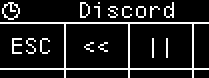
- You can also set it manually
Reading RTC
Validity Check
ALWAYS check _RTC_IS_VALID first!
- Do not proceed if value is 0.
IF _RTC_IS_VALID == 0
    // RTC is uninitialised, do not proceed.
    HALT
END_IF
UTC Offset
The RTC always runs in UTC.
Local time is obtained by adding an UTC Offset in MINUTES
- It is set automatically to your local timezone when using the Autoswitcher.
- You can check (and manually adjust) the offset by reading/writing
_RTC_UTC_OFFSETvariable- Can be positive, 0, or negative.
Time and Date
With valid RTC and correct UTC offset, you can now read from the variables below:
| Name | Comment | Range |
|---|---|---|
_RTC_YEAR |
4-digit Year | e.g. 2025 |
_RTC_MONTH |
Month | 1–12 |
_RTC_DAY |
Day | 1–31 |
_RTC_HOUR |
Hour | 0–23 |
_RTC_MINUTE |
Minute | 0–59 |
_RTC_SECOND |
Second | 0–60 |
_RTC_WDAY |
Day of Week (0 = Sunday) |
0–6 |
_RTC_YDAY |
Day of Year (0 = Jan 1) |
0–365 |
Example Usage
STRING $_RTC_YEAR%04d-$_RTC_MONTH%02d-$_RTC_DAY%02d $_RTC_HOUR%02d:$_RTC_MINUTE%02d:$_RTC_SECOND%02d
2025-09-18 09:07:23
See Advanced Printing for formatting tips.
⬆️⬆️⬆️⬆️⬆️⬆️ Back to Top ⬆️⬆️⬆️⬆️⬆️⬆️
Conditional Statements
IF statements can be used to conditionally execute code.
At simplest, it involves IF and END_IF:
IF expression
    code to execute
END_IF
The code inside is executed if the expression evaluates to non-zero.
Indent doesn’t matter, feel free to add them for a cleaner look.
You can use ELSE IF and ELSE for additional checks.
If the first IF evaluate to 0, ELSE IFs are checked.
If none of the conditions are met, code inside ELSE is executed.
VAR temp = 25

IF temp > 30
    STRING It's very hot!
ELSE IF temp > 18
    STRING It's a pleasant day.
ELSE
    STRING It's quite chilly!
END_IF
⬆️⬆️⬆️⬆️⬆️⬆️ Back to Top ⬆️⬆️⬆️⬆️⬆️⬆️
Loops
You can use WHILE statement to repeat actions until a certain condition is met.
WHILE expression
    code to repeat
END_WHILE
- If
expressionevaluates to non-zero, code inside is repeated. Otherwise, the code is skipped.
This simple example loops 3 times.
VAR i = 0
WHILE i < 3
    STRINGLN Counter is $i!
    i = i + 1
END_WHILE
Counter is 0!
Counter is 1!
Counter is 2!
LBREAK
Use LBREAK to exit a loop immediately.
VAR i = 0
WHILE 1
    STRINGLN Counter is $i!
    i = i + 1

    IF i == 3
        LBREAK
    END_IF
END_WHILE
Counter is 0!
Counter is 1!
Counter is 2!
CONTINUE
Use CONTINUE to jump to the start of loop immediately.
VAR i = 0
WHILE i < 5
    i = i + 1

    IF i == 3
        CONTINUE
    END_IF

    STRINGLN Counter is $i!
END_WHILE
Here when i is 3, it skips printing and starts from the top instead.
Counter is 1!
Counter is 2!
Counter is 4!
Counter is 5!
Infinite Loop
To exit an infinite loop, you can check button status, or turn on Allow Abort in configurator settings.
⬆️⬆️⬆️⬆️⬆️⬆️ Back to Top ⬆️⬆️⬆️⬆️⬆️⬆️
Functions
A function is a block of organized code that you can call to perform a task.
It makes your script more modular and easier to maintain compared to copy-pasting same code multiple times.
Plain Functions
- Declare a function with
FUN name()andEND_FUN - Put the code you want to execute inside
- Call it with
name() - Code inside are executed
FUN print_addr()
    STRINGLN 123 Ducky Lane
    STRINGLN Pond City, QU 12345
END_FUN

print_addr() // call it
Arguments and Returns
You can also pass arguments into a function and specify a return value.
- Ideal for performing calculations
FUN add_number(a, b)
    RETURN a + b
END_FUN

VAR total = add_number(10, 20)
Variable Scoping
Variables declared outside functions have global scope, they can be accessed anywhere.
Variables declared inside functions have local scope, they are only accessible within that function.
- If a local variable has the same name as a global variable, the local var takes priority within that function.
// Both global scope
VAR x = 10
VAR y = 20

FUN scope_demo()
    VAR x = 5 // This x is local, will shadow the global x.
    x = x + y
    STRINGLN Local x is: $x
END_FUN
Local x is: 25
Nested / Recursive Calls
You can also:
- Call other functions from inside a function
- Including calling itself!
FUN factorial(n)
    IF n <= 1
        RETURN 1
    END_IF
    RETURN n * factorial(n - 1)
END_FUN

VAR fact = factorial(5)
⬆️⬆️⬆️⬆️⬆️⬆️ Back to Top ⬆️⬆️⬆️⬆️⬆️⬆️
duckyPad Standard Library
The DPDS StdLib provides handy helper functions to simplify duckyScript coding.
To use them, add USE_STDLIB in your code.
USE_STDLIB

STRINGLN Press Key 3 to continue...
WAITKEY(3)

VAR high_score = MAX(100, 500)

STRINGLN The high score is: $high_score
⬆️⬆️⬆️⬆️⬆️⬆️ Back to Top ⬆️⬆️⬆️⬆️⬆️⬆️
User Headers
You can also create your own header for custom helper functions and more.
- Click
Edit HeadersButton - Write code
- Add
USE_UHto your script to include them- The header is added to your source code AS-IS during preprocessing
⬆️⬆️⬆️⬆️⬆️⬆️ Back to Top ⬆️⬆️⬆️⬆️⬆️⬆️
Built-in Functions
A few built-in functions are available. They are intended for low-level tinkering.
You might want to get familiar with VM’s memory map
All multi-byte values are little-endian
PEEK8(addr) / PEEK16(addr) / PEEK32(addr)
Read SIGNED value at memory address.
- High bits are SIGN-extended
PEEKU8(addr) / PEEKU16(addr)
Read UNSIGNED value at memory address.
- High bits are ZERO-extended
POKE8(addr, val) / POKE16(addr, val) / POKE32(addr, val)
Write value at memory address.
valcan be numbers or charactersPOKE8(0xf400, 'c')POKE32(0xf410, 0xabcd)
RANDCHR(value)
Generate a random character.
valueis checked as a bitfield:Bit 0: Letter Lowercase (A-Z)Bit 1: Letter Uppercase (a-z)Bit 2: Digits (0-9)Bit 3: Symbols (!"#$\%\&'()*+\,-.\/:\;<=>\?\@[\]\^_`{|})Bit 8: Type via KeyboardBit 9: Print to OLED at current cursor position
- For
Bit 0-3, if any bit is1, its pool of characters will be included for random selection. - If
Bit 8is 1, it will type the character via keyboard. - If
Bit 9is 1, it will print the character to screen buffer- Don’t forget to use
OLED_UPDATEto actually refresh the screen.
- Don’t forget to use
RANDINT(lower, upper) / RANDUINT(lower, upper)
Returns a Signed/Unsigned random number between lower and upper INCLUSIVE.
VAR value = RANDINT(-100, 100)
VAR value = RANDUINT(3000000000, 4000000000)
PUTS(value)
Print string at memory address.
valuecontains:Bit 0-15: AddressBit 16-23:nBit 29: Print to OLED at current cursor positionBit 30: Print to OLED center-alignedBit 31: Type via Keyboard
- If
n = 0, print until zero-termination.- Else, print max
ncharacters.
- Else, print max
HIDTX(addr)
Send a raw HID message
- Pick an address
addrin scratch memory area - Use
POKE8()to write 9 bytes starting fromaddr- Follow the format below
- Call
HIDTX(addr)to send the HID message - Include a short delay (10-20ms) to allow computer to register the input
- Don’t forget to release the key after pressing it
- Set
Byte 1-8to 0 to release
- Set
Keyboard
| Byte | Value | Description |
|---|---|---|
addr |
1 | Usage ID |
addr+1 |
Modifier Bitfield |
Bit 0: Left ControlBit 1: Left ShiftBit 2: Left AltBit 3: Left GUI (Win/Cmd)Bit 4: Right ControlBit 5: Right ShiftBit 6: Right Alt (AltGr)Bit 7: Right GUI (Win/Cmd) |
addr+2 |
0 | Reserved |
addr+3- addr+8 |
HID Keyboard Scan Code |
See list Max 6 keys at once (6KRO) Write 0 for released / unused |
Media Keys
| Byte | Value | Description |
|---|---|---|
addr |
2 | Usage ID |
addr+1 |
Key Status Bitfield |
Bit 0: Next TrackBit 1: Previous TrackBit 2: StopBit 3: EjectBit 4: Play / PauseBit 5: MuteBit 6: Volume UpBit 7: Volume Down |
addr+2- addr+8 |
0 | 0 |
Mouse
| Byte | Value | Description |
|---|---|---|
addr |
3 | Usage ID |
addr+1 |
Buttons Status Bitfield |
Bit 0: LeftBit 1: RightBit 2: MiddleBit 3: BackwardBit 4: Forward |
addr+2 |
X Movement | -127 - 127 |
addr+3 |
Y Movement | -127 - 127 |
addr+4 |
Vertical Scroll |
-127 - 127 |
addr+5 |
Horizontal Scroll |
-127 - 127 |
addr+6- addr+8 |
0 | 0 |
⬆️⬆️⬆️⬆️⬆️⬆️ Back to Top ⬆️⬆️⬆️⬆️⬆️⬆️
Reading Inputs
You can read the status of switches / encoders to perform actions.
Blocking Read
Simplest method.
Just read _BLOCKING_READKEY reserved variable.
It will block until a key is pressed.
VAR this_key = _BLOCKING_READKEY
// Blocks here until a key is pressed

IF this_key == 1
    // do something here
ELSE IF this_key == 2
    // do something else
END_IF
Non-Blocking Read
Read _READKEY, returns immediately.
Returns 0 if no key is pressed. Key ID otherwise.
Check this in a loop to perform work even when no key is pressed.
WHILE TRUE
    VAR this_key = _READKEY
    IF this_key == 1
        // handling button press
    END_IF

    // otherwise do work here
END_WHILE
Switch Status Bitfield
Read _SW_BITFIELD, returns immediately.
Each bit position stores the status of a key.
| Bit # | Key ID |
|---|---|
| 0 | 1 |
| 1 | 2 |
| … | … |
| 31 | 32 |
If that bit is 1, the key is currently pressed.
You can use bitmasks to check multiple keys at once.
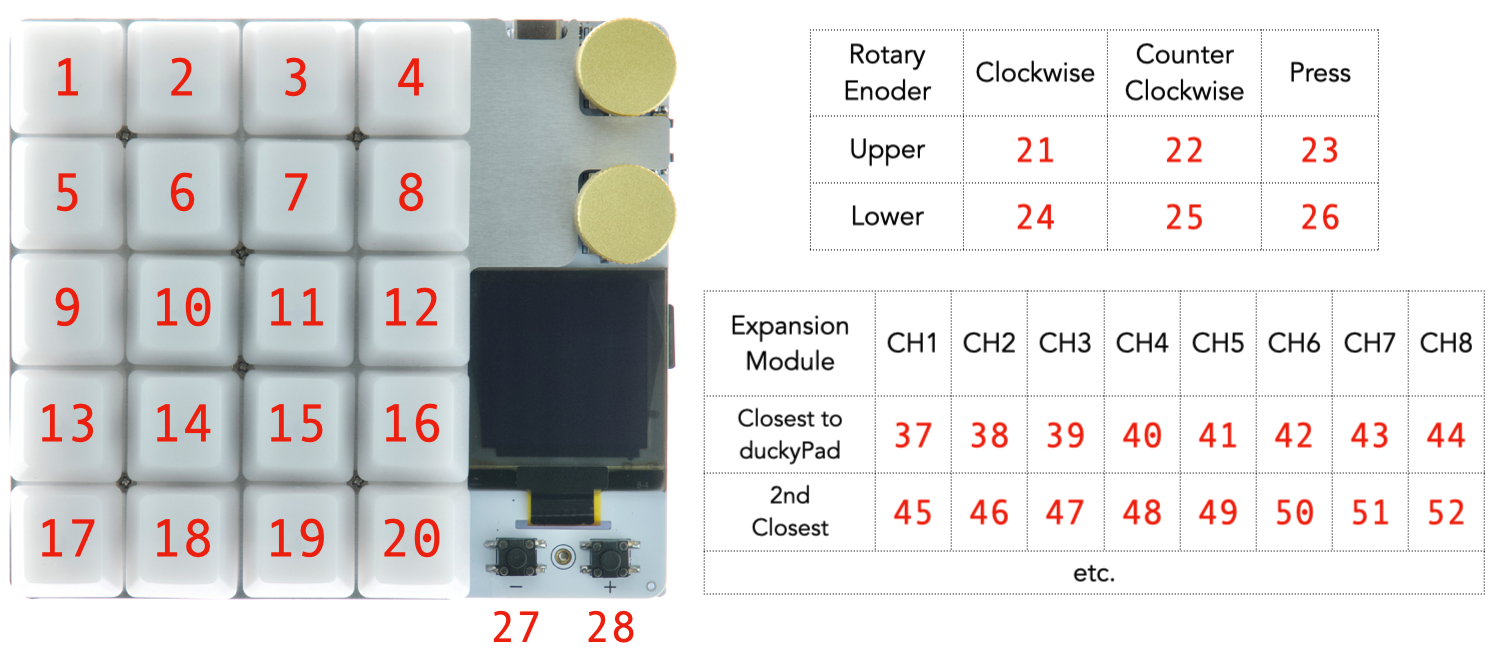
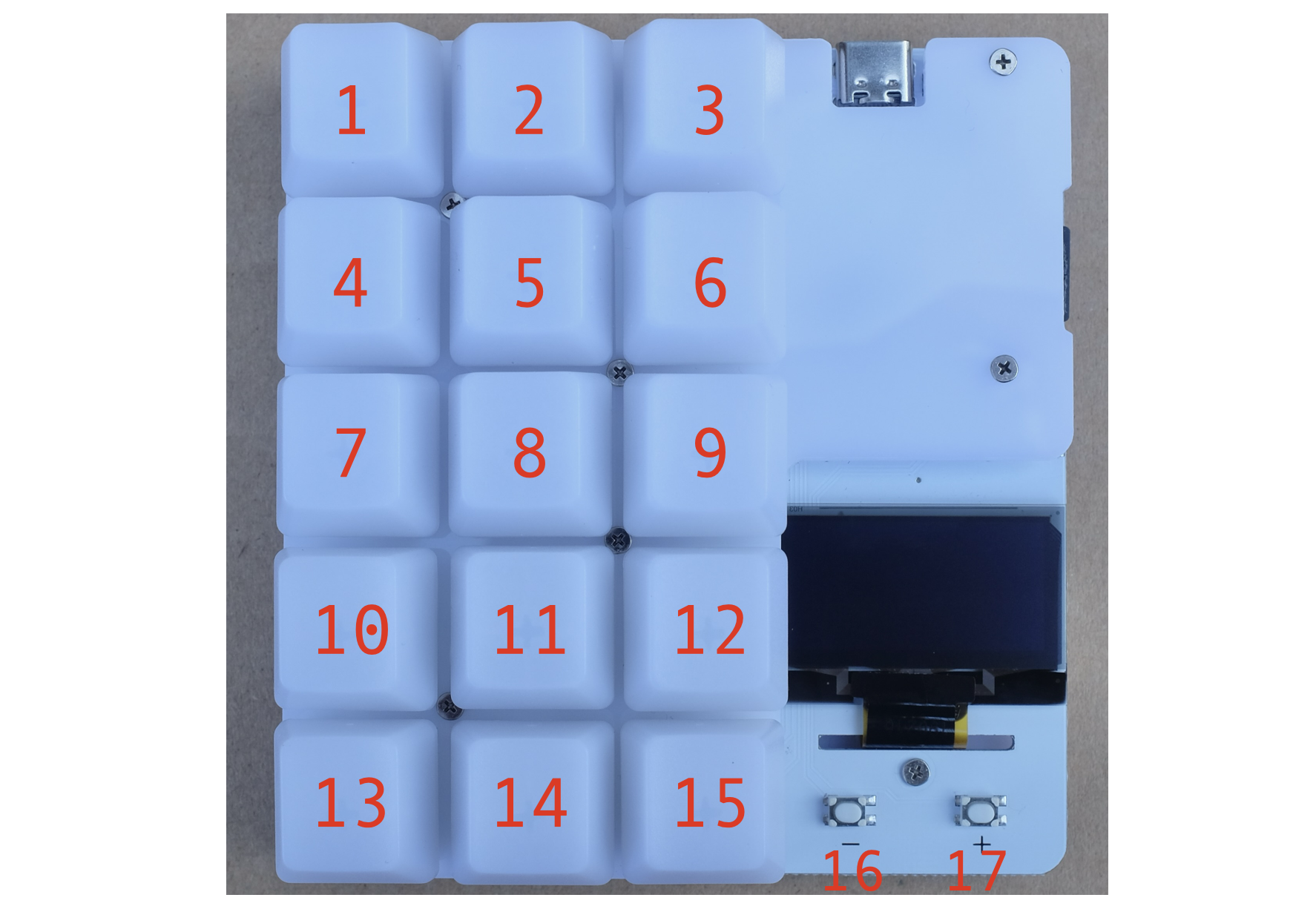
Key ID
This is the number returned by methods above.
duckyPad Pro (2024):

1-20:
    * Built-in keys
    * Top left is 1
    * Bottom right is 20

21: Upper Rotary Encoder Clockwise
22: Upper Rotary Encoder Counterclockwise
23: Upper Rotary Encoder Push-down

24: Lower Rotary Encoder Clockwise
25: Lower Rotary Encoder Counterclockwise
26: Lower Rotary Encoder Push-down

27: Plus Button
28: Minus Button

37+: External Switches
duckyPad (2020):

1-15:
    * Top left is 1
    * Bottom right is 15
    * Plus button 16, Minus button 17.
⬆️⬆️⬆️⬆️⬆️⬆️ Back to Top ⬆️⬆️⬆️⬆️⬆️⬆️
Randomization
Random Number
Call RANDINT(lower, upper) for a random number between lower and upper INCLUSIVE.
VAR value = RANDINT(0, 1000)
Random Character
Use one of below to type a random character:
RANDOM_LOWERCASE_LETTER     RANDOM_NUMBER
RANDOM_UPPERCASE_LETTER     RANDOM_SPECIAL
RANDOM_LETTER               RANDOM_CHAR
RANDOM_NUMBER
REPEAT 7
// types 8 random numbers
For more granular control, see RANDCHR() in Built-in Functions.
⬆️⬆️⬆️⬆️⬆️⬆️ Back to Top ⬆️⬆️⬆️⬆️⬆️⬆️
Miscellaneous
DP_SLEEP
Make duckyPad go to sleep. Terminates execution.
Backlight and screen are turned off.
Press any key to wake up.
HALT
Stop execution immediately
BCLR
Clears the internal keypress event queue. Can be used:
- At end of a long script: Prevents “buffered” presses from triggering it again.
- Before reading button status: Ensures new presses are returned instead of old ones in the queue.
PASS
Does nothing. Can be used as placeholders or empty statements.
⬆️⬆️⬆️⬆️⬆️⬆️ Back to Top ⬆️⬆️⬆️⬆️⬆️⬆️
Reserved Variables List
There are some reserved variables that are always available.
You can read or write (RW) to adjust settings. Some are read-only (RO).
| Name | Access | Description |
|---|---|---|
_TIME_S_TIME_MS |
RO | Elapsed time since power-on |
_READKEY_BLOCKING_READKEY_SW_BITFIELD |
RO | See Reading Inputs |
_KBLED_BITFIELD |
RO | Keyboard LED StatusBit 0: Num LockBit 1: Caps LockBit 2: Scroll LockBit is set if LED is on. Certain OS may not have all LEDs |
_IS_NUMLOCK_ON_IS_CAPSLOCK_ON_IS_SCROLLLOCK_ON |
RO | Aliases |
_DEFAULTDELAY_DEFAULTCHARDELAY_CHARJITTER |
RW | Aliases |
_ALLOW_ABORT_DONT_REPEAT |
RW | Write 1 to enable0 to disable. |
_THIS_KEYID |
RO | Returns the Key ID for the current script |
_DP_MODEL |
RO | Device model. Returns:1 for duckyPad (2020)2 for duckyPad Pro (2024) |
_KEYPRESS_COUNT |
RW | How many times current key has been pressed in the current profile Assign 0 to reset |
_LOOP_SIZE |
RO | Used by LOOP command.Do not modify |
_NEEDS_EPILOGUE |
RO | Internal use only Do not modify |
_RTC_IS_VALID_RTC_YEAR_RTC_MONTH_RTC_DAY_RTC_HOUR_RTC_MINUTE_RTC_SECOND_RTC_WDAY_RTC_YDAY |
RO | See Real-time Clock |
_RTC_UTC_OFFSET |
RW | See Real-time Clock |
⬆️⬆️⬆️⬆️⬆️⬆️ Back to Top ⬆️⬆️⬆️⬆️⬆️⬆️
Table of Contents
Questions or Comments?
Please feel free to open an issue, ask in the official duckyPad discord, or email dekuNukem@gmail.com!